


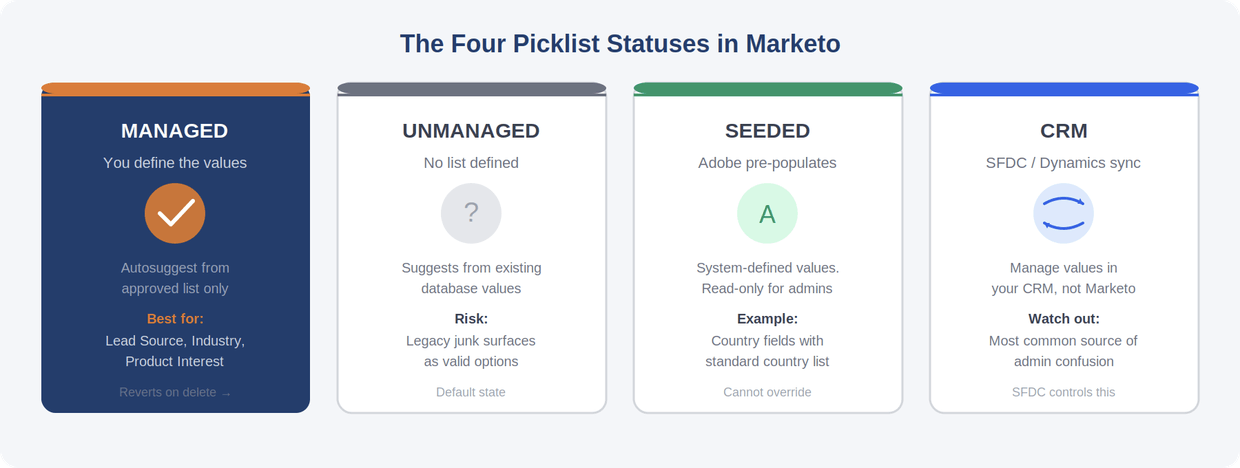
Adobe’s documentation lists four statuses, but the implications of each go deeper than the label suggests.
1. Managed
You’ve taken the wheel. Marketo will autosuggest only from your approved list in Filters, Flow Steps, and Change Data Value actions.
Key detail: Managed picklists do not prevent reps or integrations from writing other values to the field — they only control what is suggested in the Marketo UI.
2. Unmanaged
No list defined. Marketo suggests values already in your database. Legacy junk will keep surfacing as “valid” options.
3. Seeded
Adobe pre-populates a list of system-defined values. Country fields are the classic example. You don’t manage these directly.
4. CRM
The picklist is controlled by Salesforce or Microsoft Dynamics. If your field maps to a CRM picklist, you cannot manage it in Marketo — values must be governed on the CRM side.
When you add entries to a Managed Picklist, each entry has two fields:
- Display Value — what the user sees when building a Smart List or filling out a form
- Submitted Value — what actually gets stored in the database
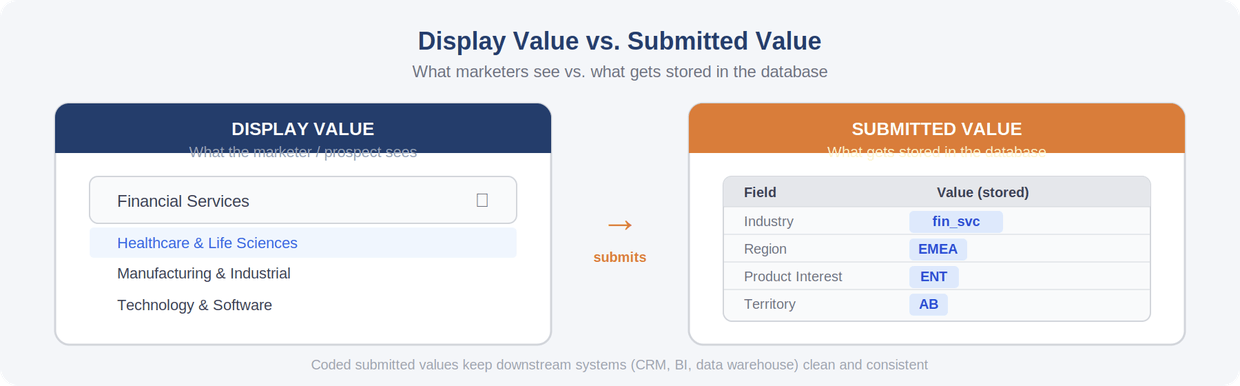
The classic example is territory codes: show “Alberta” to your team but store “AB” in the record. This keeps your UI clean for marketers and your database consistent for downstream systems.
Data governance is an enabler, not a technical exercise. Here’s what it unlocks at the business level.
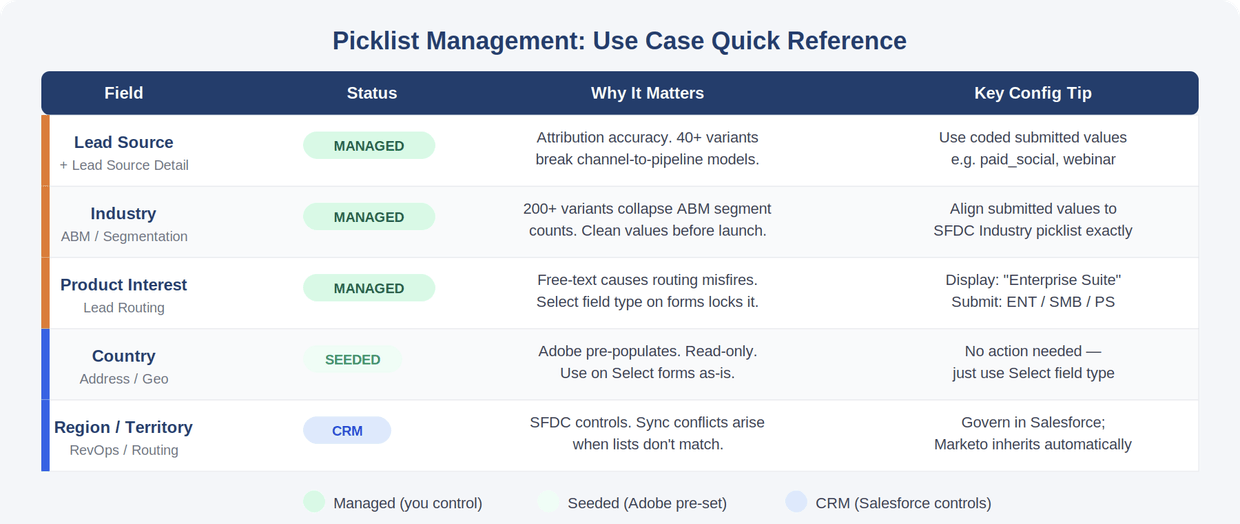
01 Revenue Attribution You Can Trust
Business challenge: Inconsistent lead source values produce attribution models that Finance won’t sign off on — making it impossible to defend marketing spend or prove ROI.
Outcome: A standardized lead source taxonomy gives leadership a single, reliable view of which channels drive pipeline. Attribution reports reconcile across CRM and BI, and budget decisions are grounded in clean data.
02 ABM Programs That Reach the Right Accounts
Business challenge: Fragmented industry and firmographic data means your highest-value segments are underpopulated. ABM investments underperform because the targeting foundation is broken.
Outcome: Governed field values ensure your named account segments reflect your actual total addressable market. Personalization is accurate, outreach reaches the right titles, and ABM program ROI improves measurably.
03 Sales and Marketing Alignment on Lead Quality
Business challenge: When product interest data is unreliable, leads route to the wrong teams. Sales loses confidence in marketing-sourced pipeline and lead SLAs are missed.
Outcome: Enforced field values mean every lead arrives with clean intent data. Sales receives correctly routed, correctly categorized leads — reducing friction, improving follow-up speed, and strengthening the marketing-to-sales handoff.
04 M&A and Platform Consolidation Without Data Debt
Business challenge: Post-acquisition tech consolidation typically inherits conflicting data taxonomies. Merging two Marketo instances without a governance plan creates months of cleanup that delays campaign execution.
Outcome: A defined picklist strategy before migration means the combined database is reporting-ready from day one. Segmentation, routing, and personalization work across the full merged population without a costly remediation project.
05 Geo-Based Reporting That Supports Territory Planning
Business challenge: Inconsistent region and territory data makes it impossible for RevOps to produce reliable geo-based pipeline reports. QBR preparation requires manual reconciliation every quarter.
Outcome: Clean, standardized region values enable accurate territory-level pipeline reporting, geo-based nurture program targeting, and revenue forecasts that align with how your GTM team is structured.